Easy Installation Guides
Follow our simple step-by-step instructions to set up Strong 4k IPTV on your favorite device in minutes.
Step-by-Step Installation Guide
This guide will walk you through the simple process of installing our application and logging in to start your viewing experience. Please follow these steps carefully.
Step 1:
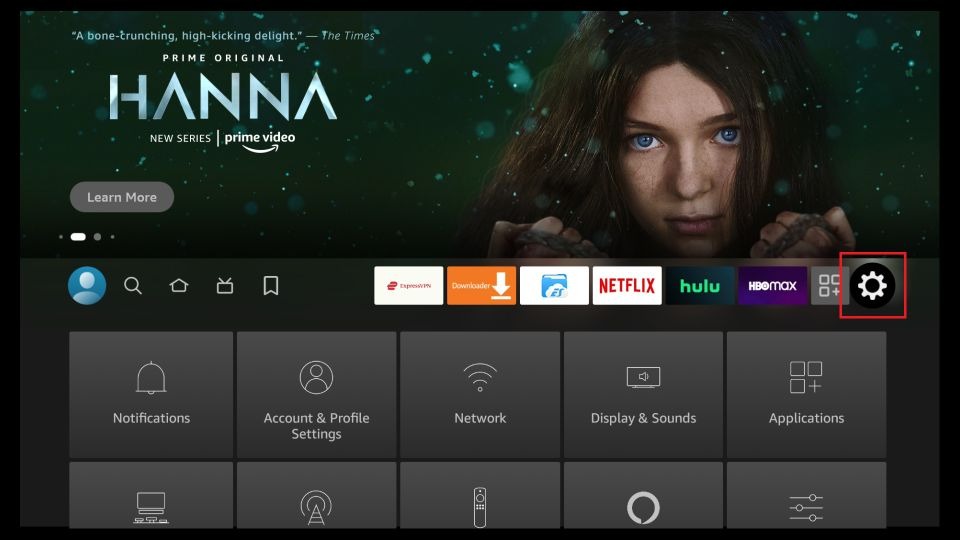
Navigate to Settings
From the Fire TV home screen, open the Settings menu (gear icon) to access device preferences.
Step 2:
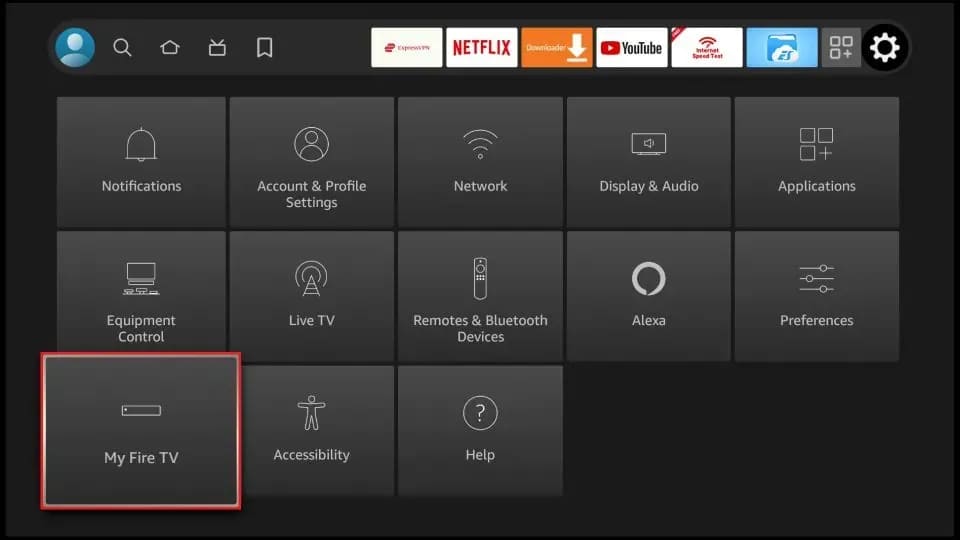
Select My Fire TV
In Settings, select “My Fire TV” to view system and developer options for your device.
Step 3:
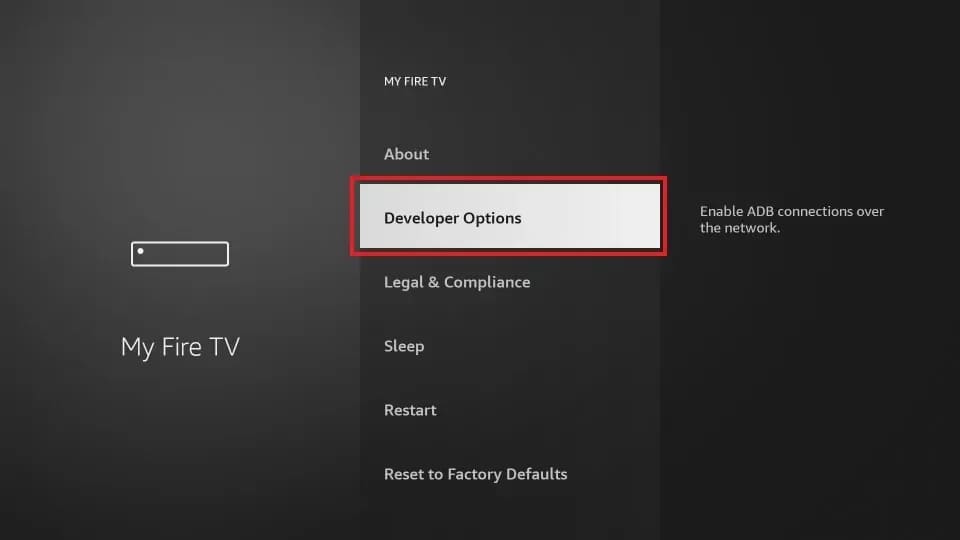
Choose Developer Options
Open “Developer Options” so you can allow installation from trusted sources.
Step 4:
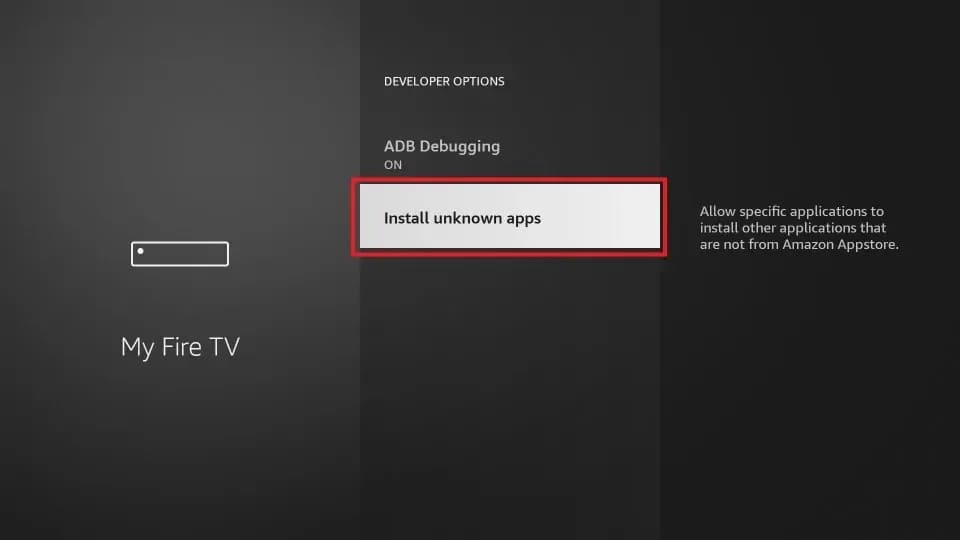
Select Install Unknown Apps
Choose “Install Unknown Apps” to control which apps are allowed to install downloaded APKs.
Step 5:
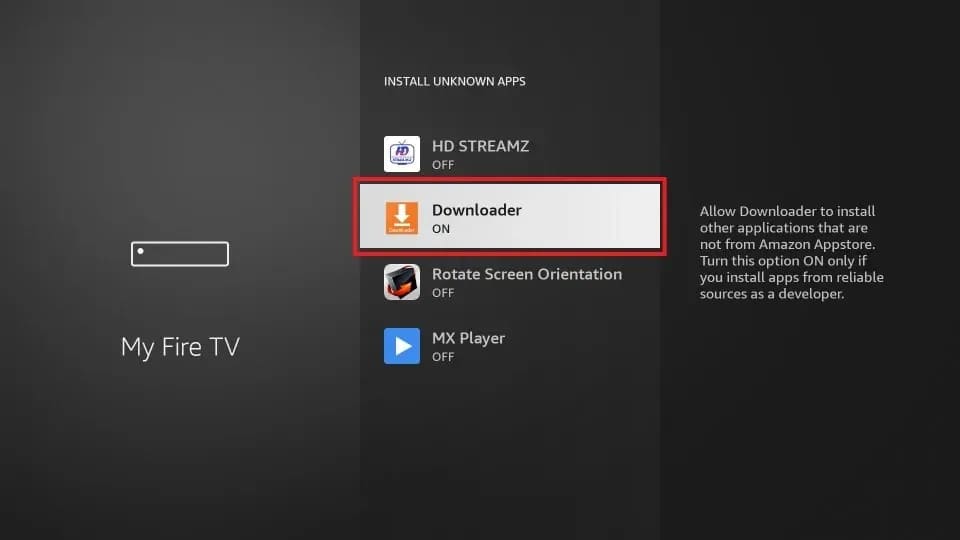
Enable Downloader
Find “Downloader” in the list and switch it ON to allow installations from Downloader.
Step 6:
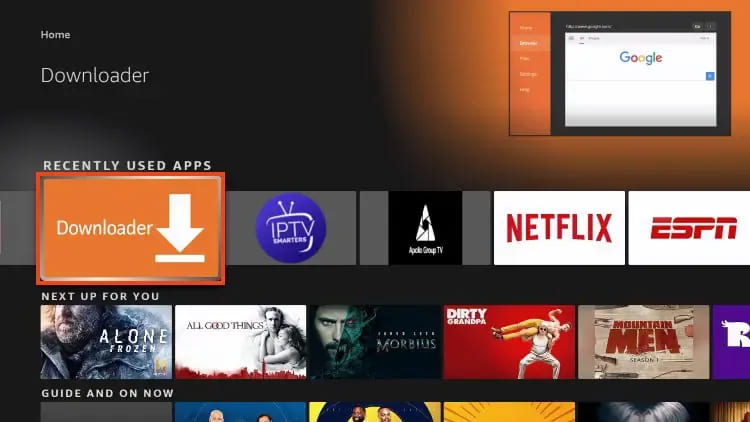
Open the Downloader App
Return to the home screen, open Downloader, and get ready to enter the download URL/code.
Step 7:
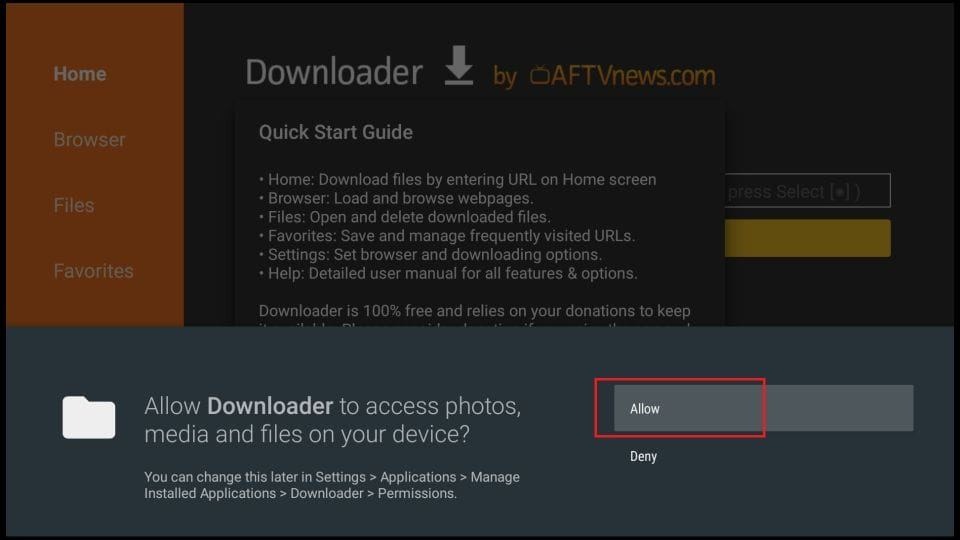
Allow Permissions
When prompted, allow the required permissions so Downloader can access files and install apps.
Step 8:
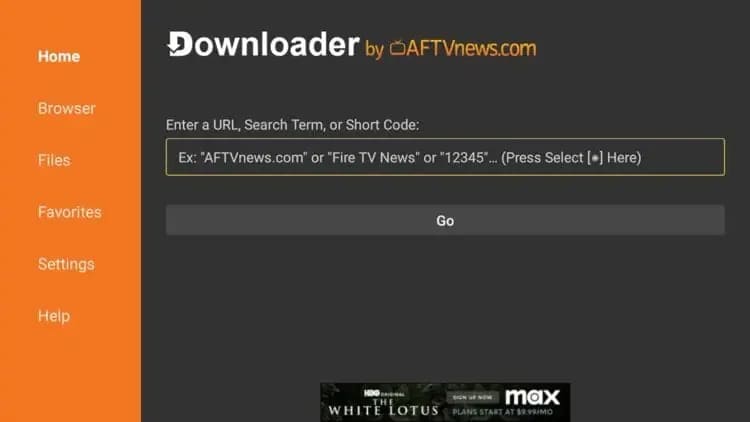
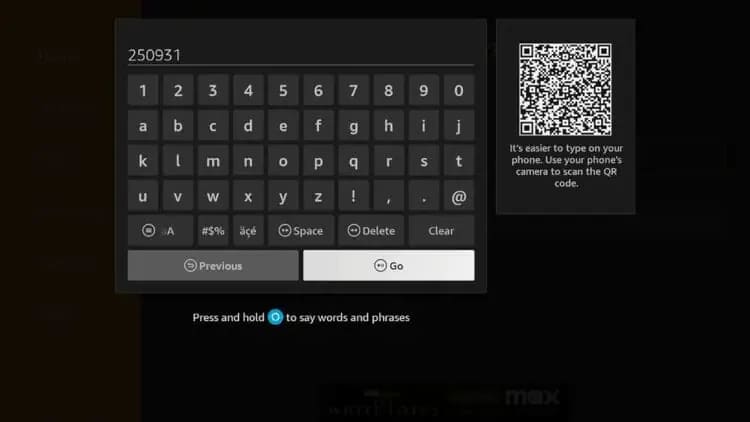
Navigate to URL Entry Box
In Downloader, click the URL input field to open the on-screen keyboard.
Step 9:
Enter Our App Code
Type the provided app code/URL and confirm to start the download.
Step 10:
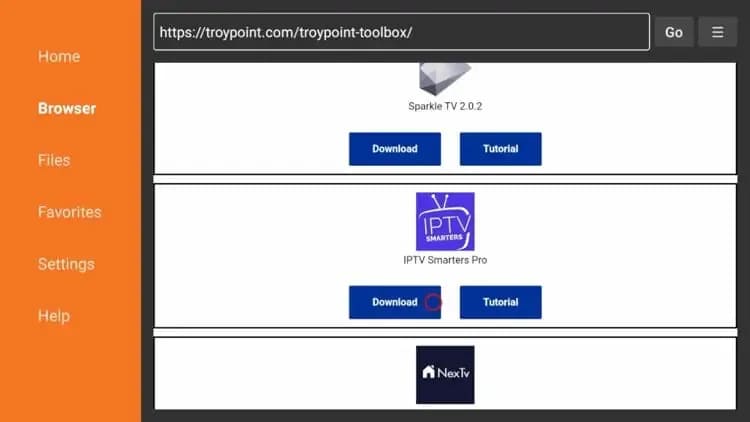
Wait for Download
Keep the app open while the file downloads. This may take a moment depending on your connection.
Step 11:
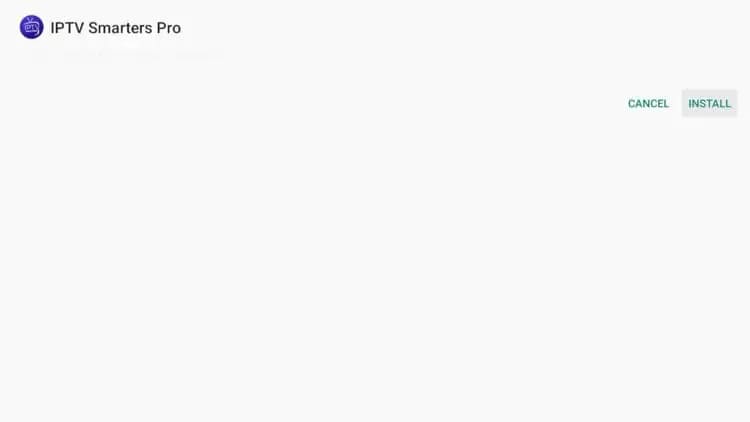
Install the Application
Once downloaded, select “Install” to begin installing the application on your Fire Stick.
Step 12:
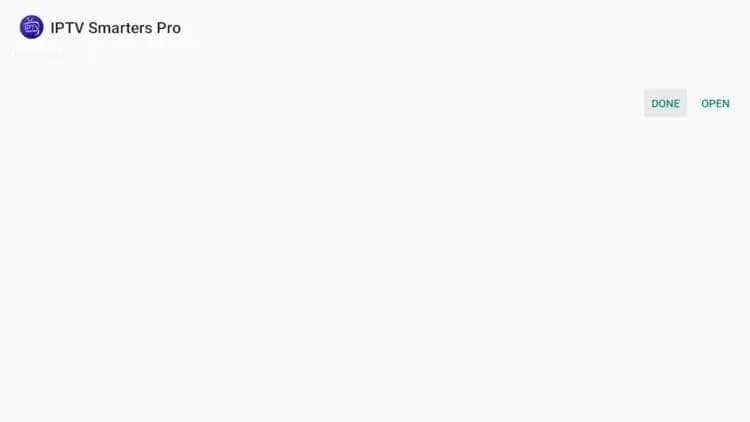
Confirm Installation
Wait until the install completes and confirm the successful installation prompt.
Step 13:
Delete the Installer File
To save storage space, choose “Delete” to remove the installer file after installation.
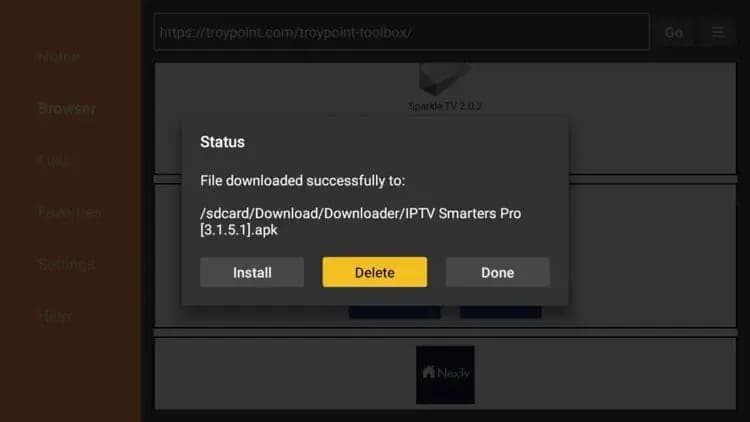
Step 14:
Confirm Deletion
Confirm again to permanently remove the installer file from your device.
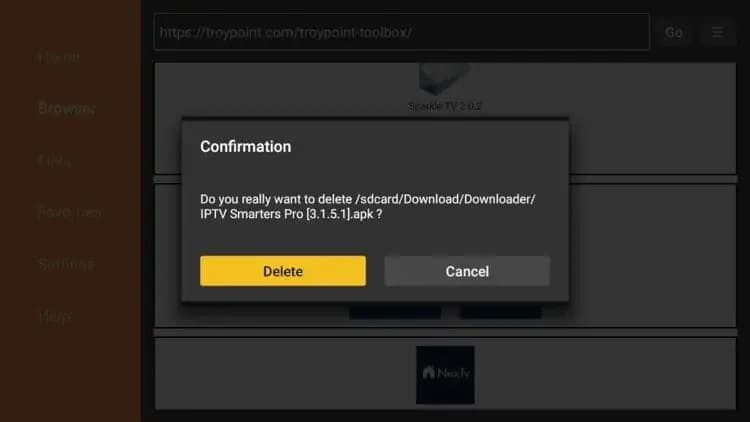
Step 15:
Find and Open Our App
Open your apps list, locate the newly installed app, and launch it.
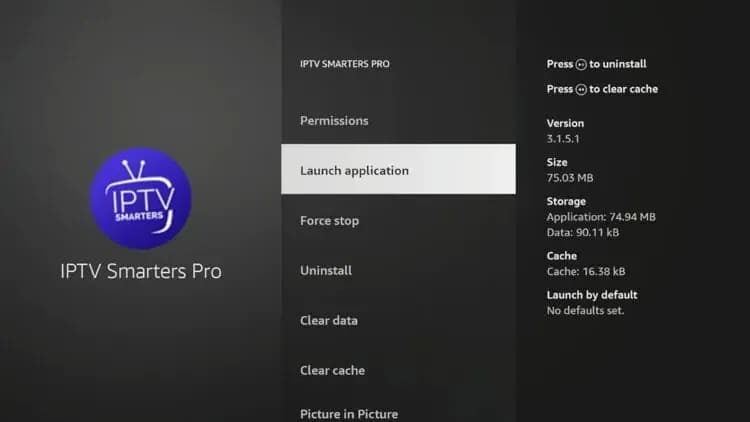
Step 16:
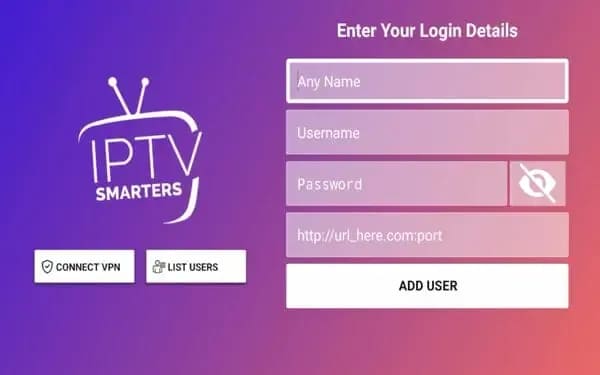
Select Login Method
Choose the login method you prefer (Xtream Codes, M3U, or other available options).
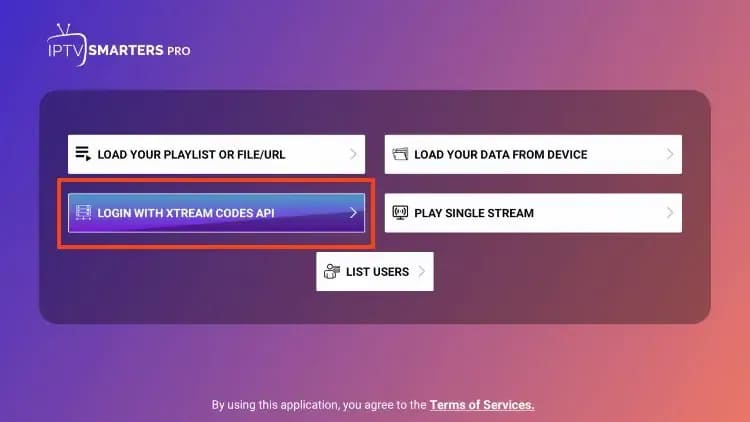
Step 17:
Enter Your Credentials
Enter the username, password, and server/portal details provided after purchase.
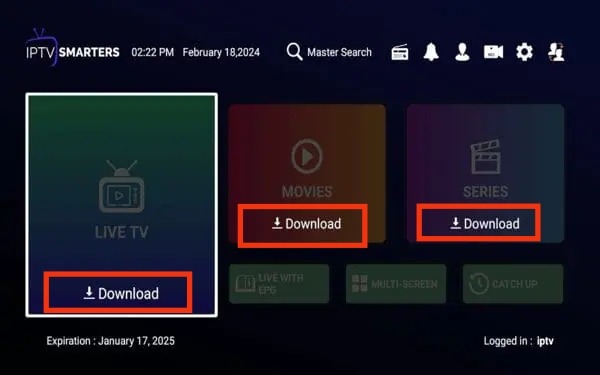
Step 18:
Loading Content
Allow a moment for channels and VOD to load and sync. Do not close the app during setup.
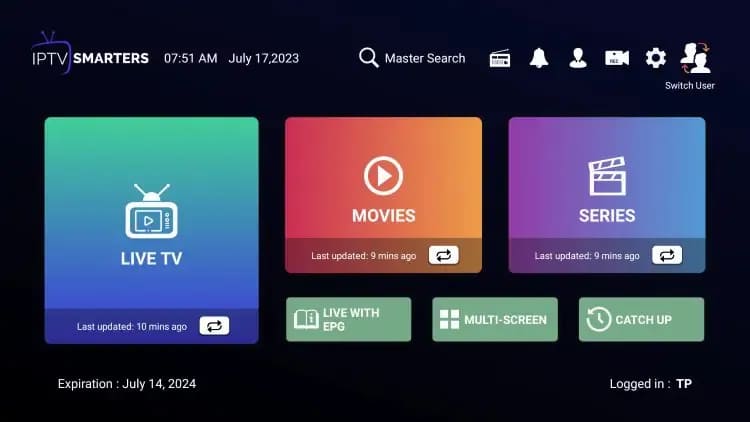
Step 19:
Enjoy the Show
You’re ready! Browse live channels and VOD, then start watching instantly.
Installation Complete!
Your device is ready. Open the app, sign in with your credentials, and start streaming instantly.
Return to Dashboard